Your Sphinx account
Short guides for the things you'll actually want to do — signing in, connecting Google or Microsoft, two-factor codes, and keeping your account safe. Your account lives at sso.12v.sh.
Understand what's on your account page
You've just opened sso.12v.sh and want to know what you're looking at.
The card at the top is your identity: your name and initials, and small coloured badges that tell you the state of things at a glance. A green verified or active badge means all is well; an amber unverified badge means something still needs your attention (usually a quick email or phone confirmation). Everything below the card is grouped into panels — the rest of this guide walks through each thing you can do.

Sign in (and get back in if you're stuck)
You want to get into your account.
- With a password — enter your email and password on the sign-in screen.
- With Google or Microsoft — choose Continue with Google or Continue with Microsoft instead of typing a password (see connecting a provider below).
- Forgot your password? — use Forgot password on the sign-in screen and we'll email you a reset link.
Verify your email address
Your email shows an amber "unverified" badge and you want to clear it.
Your email address is how you sign in and how apps recognise you, so we ask you to confirm it once.
- Open the verification email we sent when you registered and click the link.
- If it has expired or you can't find it, request a fresh one from the sign-in screen.
Once confirmed, the badge next to your email turns green.
Add or change your phone number
You want us to have a phone number for security and verification codes.
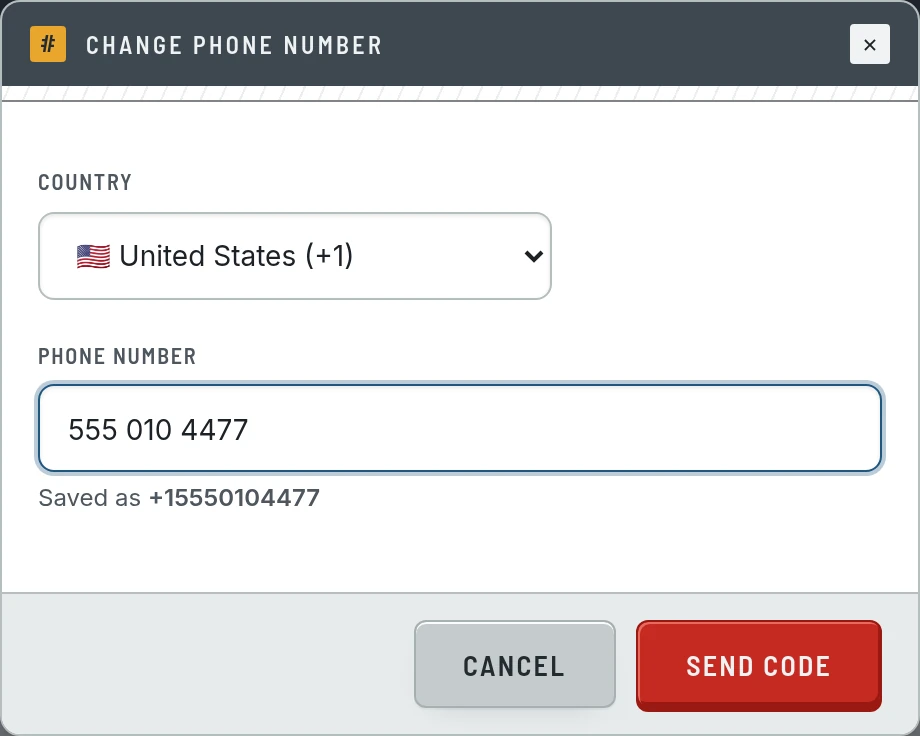
From the Phone row on your account page:
- Choose Add phone (or Change to replace an existing number).
- Pick your country and type the number — we show you exactly how it will be saved.
- Choose Send code; we text you a 6-digit code.
- Enter the code to confirm. You can resend it if it doesn't arrive.
A number that still shows unverified has a Verify action to finish confirming it, and Remove takes the number off your account.
Sign in with two-factor codes
You want a second step at sign-in so a password alone isn't enough.
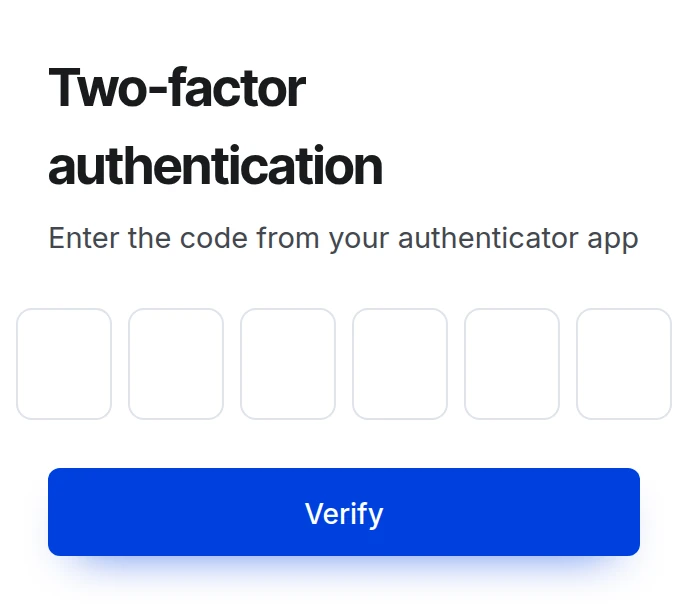
When two-factor authentication (2FA) is enabled on your account, signing in takes one extra step: after your password, we ask for the current 6-digit code from your authenticator app.
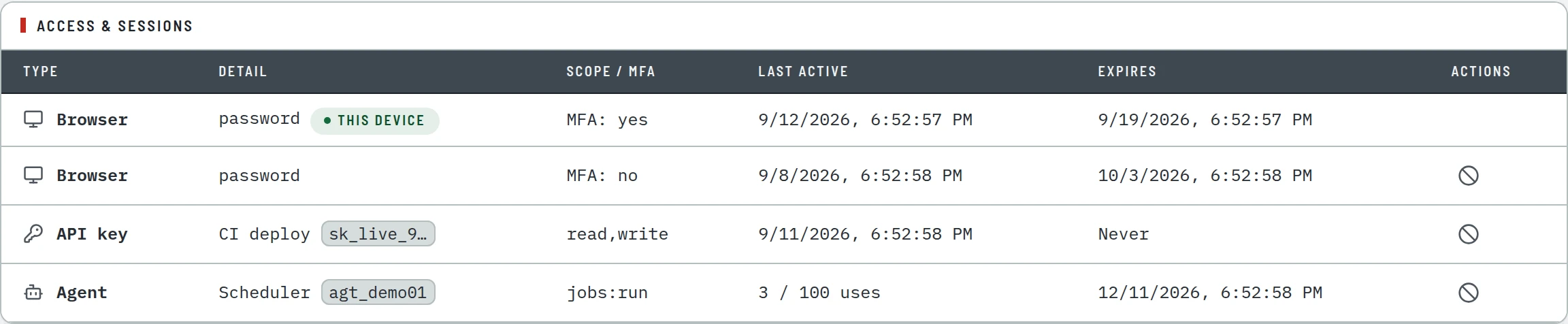
You can see which of your sign-ins were confirmed with 2FA in the Access & sessions panel — each row shows MFA: yes or MFA: no.
Connect Google or Microsoft to one account
You want to sign in with Google or Microsoft as well as (or instead of) a password — all pointing at the same account.
You can attach one or more external sign-in providers to your Sphinx account, so any of them logs you into the same account rather than creating a new one.
- On the sign-in screen, choose Continue with Google or Continue with Microsoft.
- Use the provider account whose email matches your Sphinx account — we link them together automatically by that shared email address.
- From then on, that button signs you straight in.
The Connected accounts panel lists every provider linked to you, which one is primary, and when each was last used.

Use more than one account at once
You have, say, a work and a personal account and want to switch without signing out and back in.
Sphinx can keep several accounts signed in on the same browser at the same time. The Signed-in accounts panel is where you move between them:
- Switch — make another signed-in account the active one.
- Add another account — sign in with a different account; it's added alongside the current one instead of replacing it.
- Sign out — sign one account out of this browser.
- Sign out of all — sign every account out at once.

See where you're signed in & cut off access
You want to check nothing unexpected can reach your account — and shut it down if it can.
The Access & sessions panel is your security overview: everything that can currently get into your account, in one table.
- Browser — devices and browsers where you're signed in. The one you're using now is marked this device.
- API key — programmatic keys issued for your account.
- Agent — automated agents you've allowed to act on your behalf.
If you see anything you don't recognise, choose Revoke to cut off its access immediately (you'll be asked to confirm). Use Show history to reveal access that has already expired or been revoked.
Sign out
You're done and want to leave the account securely.
Sign out at the top right signs out your current account on this browser. If you have other accounts still signed in, you'll land back on your account page as one of them; otherwise you'll return to the sign-in screen. To clear everything at once, use Sign out of all in the Signed-in accounts panel.